Workflows
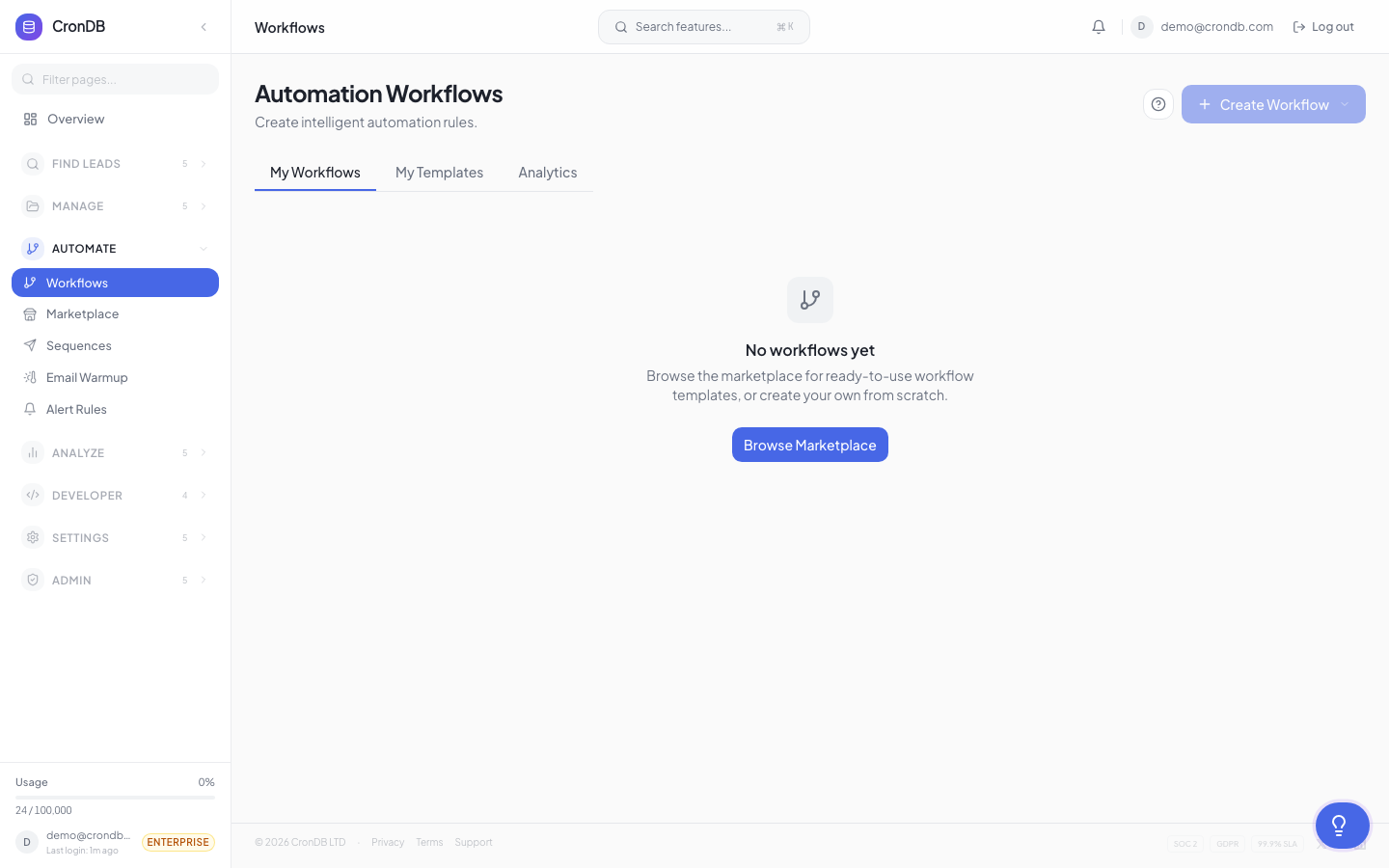
Workflows let you automate repetitive tasks inside CronDB. Define a trigger, set conditions, and execute actions — all without writing code.
How Workflows Work
Every workflow has three parts:
- Trigger — The event that starts the workflow
- Conditions (optional) — Rules that must be true for the workflow to continue
- Actions — What happens when the trigger fires and conditions are met
Creating a Workflow
- Navigate to Integrations → Workflows
- Click + New Workflow
- Give it a name (e.g., "Route US SaaS to Hot List")
- Configure trigger, conditions, and actions
- Click Activate
Triggers
| Trigger | Description |
|---|---|
| Alert match | An intent alert rule matched a new domain |
| Watchlist change | A watched domain's data changed |
| Domain added to list | A domain was added to a specific list |
| Sequence event | A contact opened, clicked, replied, or bounced |
| Score threshold | A domain's score crossed a threshold |
| New enrichment | A domain was enriched (via API or dashboard) |
| Schedule | Runs on a time schedule (daily, weekly) |
Trigger Configuration Example
Trigger: Alert Match
- Alert: "US Technology Startups"
- This fires every time a new domain matches the "US Technology Startups" alert.
Conditions
Add conditions to filter which trigger events proceed to actions:
| Condition | Operators | Example |
|---|---|---|
| Industry | is, is not | Industry is "Technology" |
| Country | is, is not | Country is "US" |
| Score | greater than, less than | Score > 70 |
| Tech stack | uses, does not use | Uses "Shopify" |
| Has email | yes, no | Has email = yes |
| Confidence | greater than | Confidence > 0.85 |
Condition Logic
Conditions combine with AND/OR logic:
IF trigger fires
AND (Industry is "Technology" OR Industry is "E-commerce")
AND Score > 50
AND Has email = yes
THEN execute actions
Actions
| Action | Description |
|---|---|
| Add to list | Add the domain to a specific lead list |
| Remove from list | Remove the domain from a list |
| Update score | Add or subtract points from the domain's score |
| Set tag | Apply a custom tag to the domain |
| Send webhook | POST data to an external URL |
| Send email | Send a notification email to a team member |
| Enroll in sequence | Add the domain to an outreach sequence |
| Create task | Create a manual task for a team member |
| Update field | Set a custom field value on the domain |
Multiple Actions
A single workflow can execute multiple actions in sequence:
Example: Full Lead Routing Workflow
- Add to "Hot Leads" list
- Set tag: "high-priority"
- Update score: +20 points
- Enroll in "VIP Outreach" sequence
- Send webhook to Slack channel
- Create task: "Review this lead" assigned to Sales Manager
Workflow Examples
Auto-Route High-Score Leads
Trigger: Score threshold crossed (score > 80)
Condition: Has email = yes
Actions:
  1. Add to "Hot Leads" list
  2. Enroll in "Fast Follow-Up" sequence
  3. Send Slack notification via webhook
Competitor Tech Adoption Alert
Trigger: Watchlist change
Condition: Tech stack added contains "CompetitorProduct"
Actions:
  1. Add to "Competitor Users" list
  2. Create task: "Research competitive angle"
  3. Update score: +25 points
Weekly Lead Digest
Trigger: Schedule (every Monday at 9 AM)
Condition: None
Actions:
  1. Send email with weekly lead summary to team
Testing Workflows
Before activating:
- Click Test to simulate the workflow with a sample domain
- Review which conditions would pass
- Preview which actions would execute
- Verify the output matches your expectations
Workflow Limits
| Plan | Max Workflows | Max Actions per Workflow |
|---|---|---|
| Pro | 10 | 5 |
| Enterprise | Unlimited | 10 |
Availability
Workflows are available on Pro and Enterprise plans. Starter and Free users can achieve similar automation using webhooks and external tools.
Next Steps
- Webhooks — Send workflow data to external systems
- Triggers — Sequence-specific triggers
- Scoring Rules — Score-based workflow triggers