Lead Lists
Lead lists let you organize domains into named groups for segmentation, tracking, and outreach. Think of them as folders for your prospects.
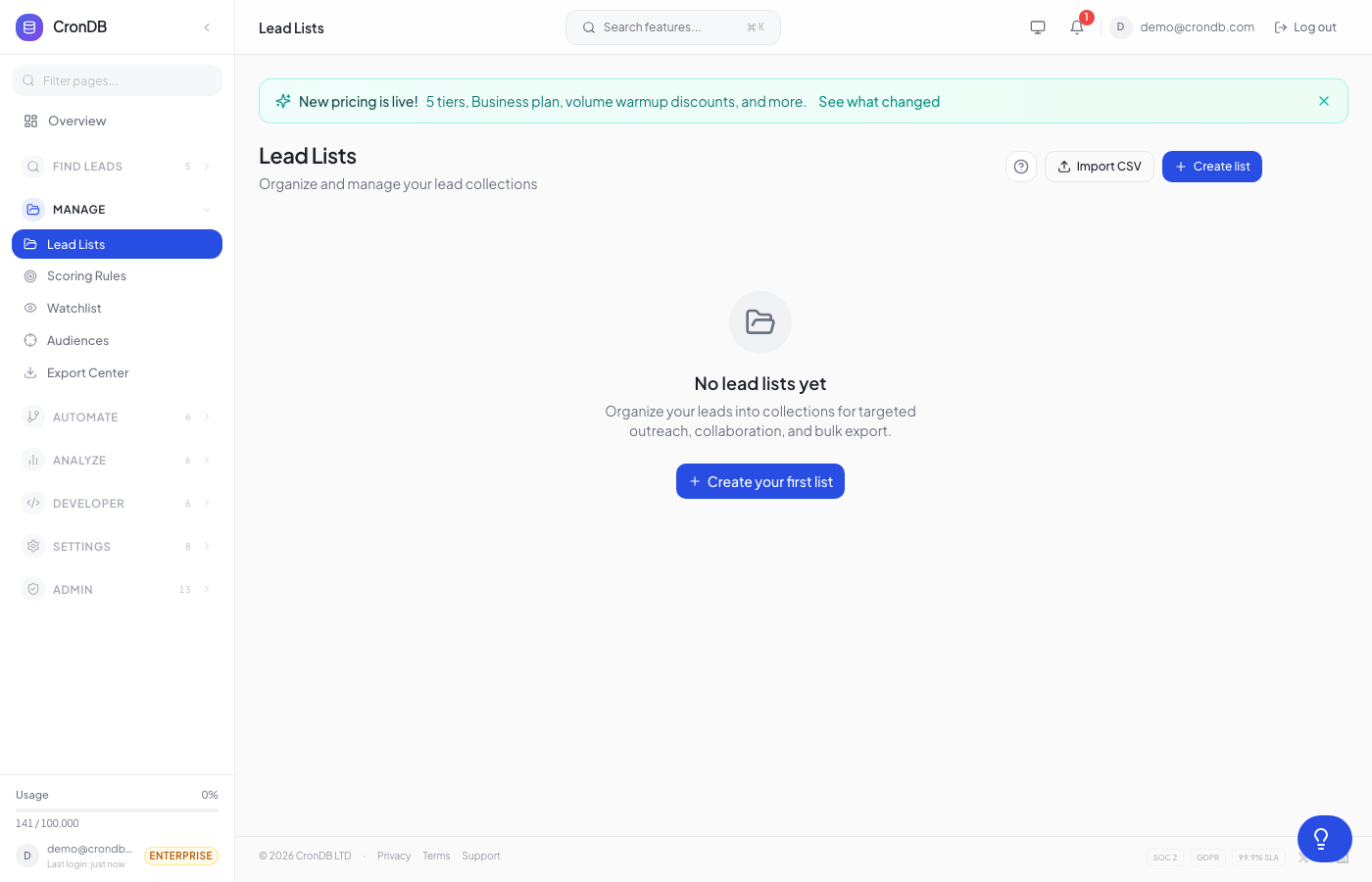
Creating a List
- Navigate to Lead Management → Lead Lists in the sidebar
- Click + New List
- Enter a name (e.g., "Q1 SaaS Prospects", "E-commerce UK")
- Optionally add a description
- Click Create
Your new list appears in the left panel and is ready to receive domains.
Adding Domains to a List
From Domain Explorer
- Search for domains using the Domain Explorer
- Select one or more domains using the checkboxes
- Click Add to List in the toolbar
- Choose an existing list or create a new one
From Domain 360
When viewing a single domain's detail page, click the Add to List button in the top-right corner.
Bulk Import
Import domains from a CSV file:
- Open your list
- Click Import in the toolbar
- Upload a CSV file with a
domaincolumn - Map columns if needed (CronDB auto-detects common column names)
- Click Import Domains
Your CSV should have at least a domain column. CronDB will enrich each domain automatically. Example:
domain
stripe.com
shopify.com
hubspot.com
Additional columns (like notes or tags) will be stored as custom fields on each domain entry.
From the API
curl -X POST \
  -H "Authorization: Bearer cdb_your_api_key_here" \
  -H "Content-Type: application/json" \
  -d '{"list_id": "lst_abc123", "domains": ["stripe.com", "shopify.com"]}' \
  "https://api.crondb.com/v1/lists/add"
Filtering Within a List
Once a list has domains, use the filter bar at the top to narrow results:
- Industry — Filter by classified industry
- Country — Filter by registrant country
- Tech Stack — Filter by detected technologies
- Score — Filter by lead score (if scoring rules are applied)
- Date Added — Filter by when the domain was added to the list
Sorting
Click any column header to sort:
- Domain — Alphabetical
- Industry — Grouped by category
- Score — Highest to lowest (or reverse)
- Date Added — Newest or oldest first
- Confidence — AI confidence level
Exporting a List
- Open the list
- Click Export in the toolbar
- Choose format: CSV or JSON
- Select which fields to include
- Click Download
Exports are also available from the Export Center for scheduled downloads.
Sharing Lists with Your Team
On Pro and Enterprise plans, lists can be shared with team members:
- Open the list
- Click the Share icon next to the list name
- Choose team members or share with the entire team
- Set permissions: View Only or Edit
Shared lists appear in each team member's sidebar under a "Shared" section.
List Limits by Plan
| Plan | Max Lists | Max Domains per List |
|---|---|---|
| Free | 1 | 100 |
| Starter | 10 | 5,000 |
| Pro | 50 | 50,000 |
| Enterprise | Unlimited | Unlimited |
When you reach 80% of your list limit, a warning banner appears. Upgrade your plan to create more lists or increase domain capacity.
Deleting a List
- Right-click the list name in the sidebar (or click the three-dot menu)
- Select Delete List
- Confirm the deletion
Deleting a list removes all domain entries from that list. The domains themselves remain in CronDB's database and can be found again via search.
Next Steps
- Audiences — Dynamic, auto-updating groups
- Scoring Rules — Score and rank domains in your lists
- Export Center — Schedule recurring exports