Export Center
The Export Center is where you download data from CronDB — on demand or on a schedule. It supports CSV and JSON formats, and lets you choose exactly which fields to include.
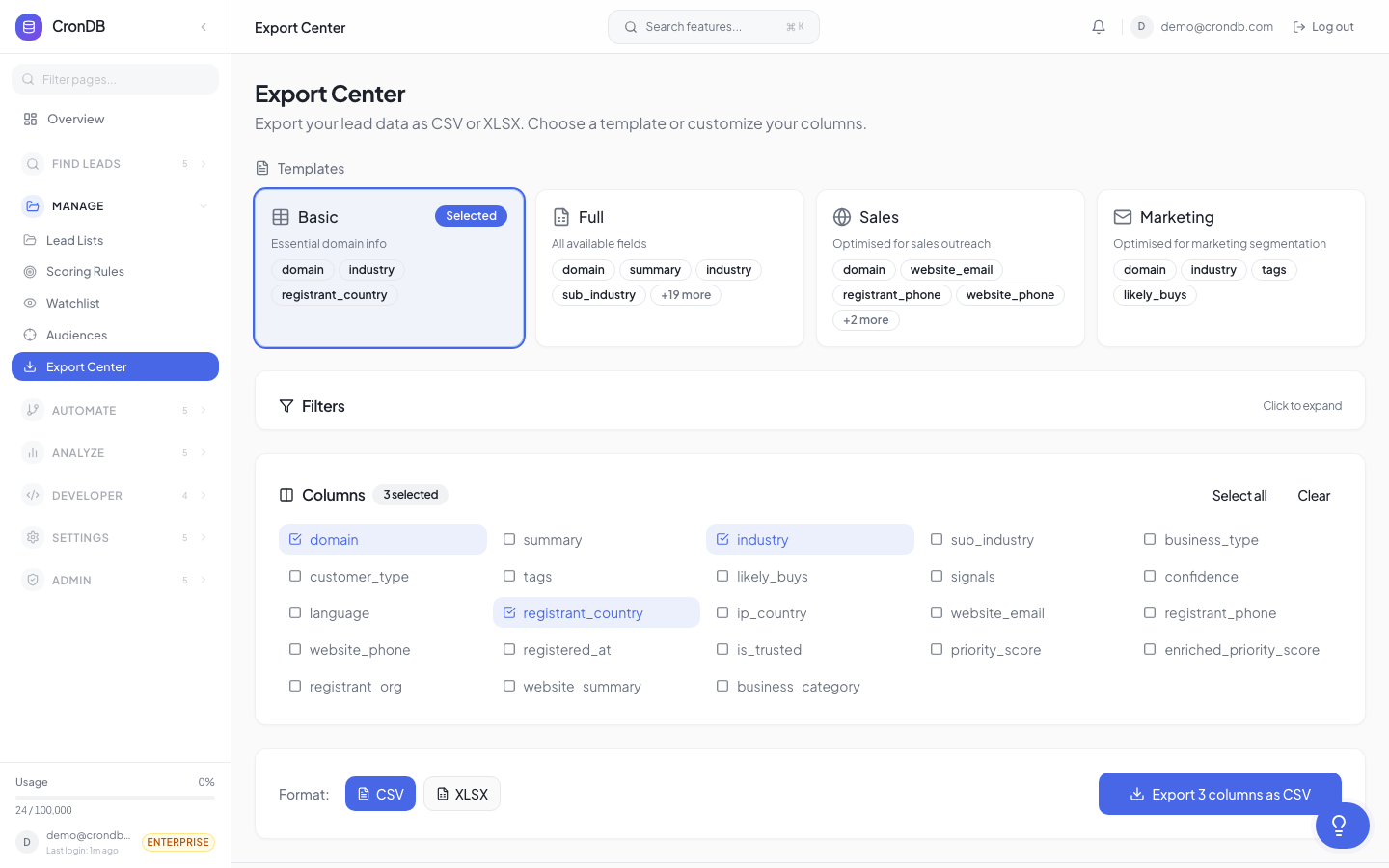
Accessing the Export Center
Navigate to Lead Management → Export Center in the sidebar. You will see:
- Recent Exports — List of your past downloads with status and download links
- Scheduled Exports — Recurring exports you have configured
- New Export — Start a fresh export
Creating an Export
On-Demand Export
- Click + New Export
- Choose the data source:
- A specific Lead List
- An Audience
- Search results (saves your current Domain Explorer filters)
- Watchlist
- Choose the format: CSV or JSON
- Select fields to include:
| Field Group | Fields |
|---|---|
| Basic | Domain, industry, business type, country |
| Contact | Emails, phones, social links |
| Tech Stack | CMS, analytics, chat, e-commerce, framework |
| Scoring | Score values, tier labels |
| Metadata | Registration date, confidence, last updated |
| Custom | Any custom fields you have added |
- Click Export Now
- The file is generated and a download link appears in your Recent Exports
Scheduled Exports
Set up recurring exports that run automatically:
- Click + Schedule Export
- Configure the data source and fields (same as above)
- Set the schedule:
- Daily — Runs at a time you choose
- Weekly — Runs on a day and time you choose
- Monthly — Runs on a date and time you choose
- Choose delivery: download link via email, or webhook POST
- Click Save Schedule
Scheduled exports include only domains added or changed since the last export, unless you select Full export to include all data each time.
Export History
The Recent Exports table shows:
| Column | Description |
|---|---|
| Date | When the export was generated |
| Source | Which list, audience, or search |
| Format | CSV or JSON |
| Records | Number of domains exported |
| Size | File size |
| Status | Processing, Ready, Expired |
| Download | Link to download (available for 30 days) |
Export files are available for download for 30 days after generation. After that, they are deleted. Schedule a new export if you need fresh data.
CSV Format
CSV exports use comma-separated values with a header row:
domain,industry,business_type,country,confidence,emails,tech_cms,tech_analytics
stripe.com,Technology,B2B SaaS,US,0.95,sales@stripe.com,Custom,Google Analytics|Segment
shopify.com,E-commerce,Marketplace,CA,0.93,partners@shopify.com,Custom,Google Analytics
Multi-value fields (like tech stack items) use the pipe | separator within a single column.
JSON Format
JSON exports return an array of domain objects:
[
  {
    "domain": "stripe.com",
    "industry": "Technology",
    "business_type": "B2B SaaS",
    "country": "US",
    "confidence": 0.95,
    "contact": {
      "emails": ["sales@stripe.com"]
    },
    "tech_stack": {
      "cms": "Custom",
      "analytics": ["Google Analytics", "Segment"]
    }
  }
]
Export Limits
| Plan | Max Records per Export | Scheduled Exports |
|---|---|---|
| Free | 100 | — |
| Starter | 5,000 | 2 |
| Pro | 50,000 | 10 |
| Enterprise | Unlimited | Unlimited |
For exports exceeding 50,000 records, use the Bulk API for programmatic access. The API supports pagination for any dataset size.
Next Steps
- Lead Lists — Build lists to export
- Audiences — Create dynamic sources for scheduled exports
- Bulk API — Programmatic data access for large datasets