Watchlist
The Watchlist lets you monitor specific domains and receive alerts when their data changes. Use it to track competitors, key prospects, or domains you are nurturing.
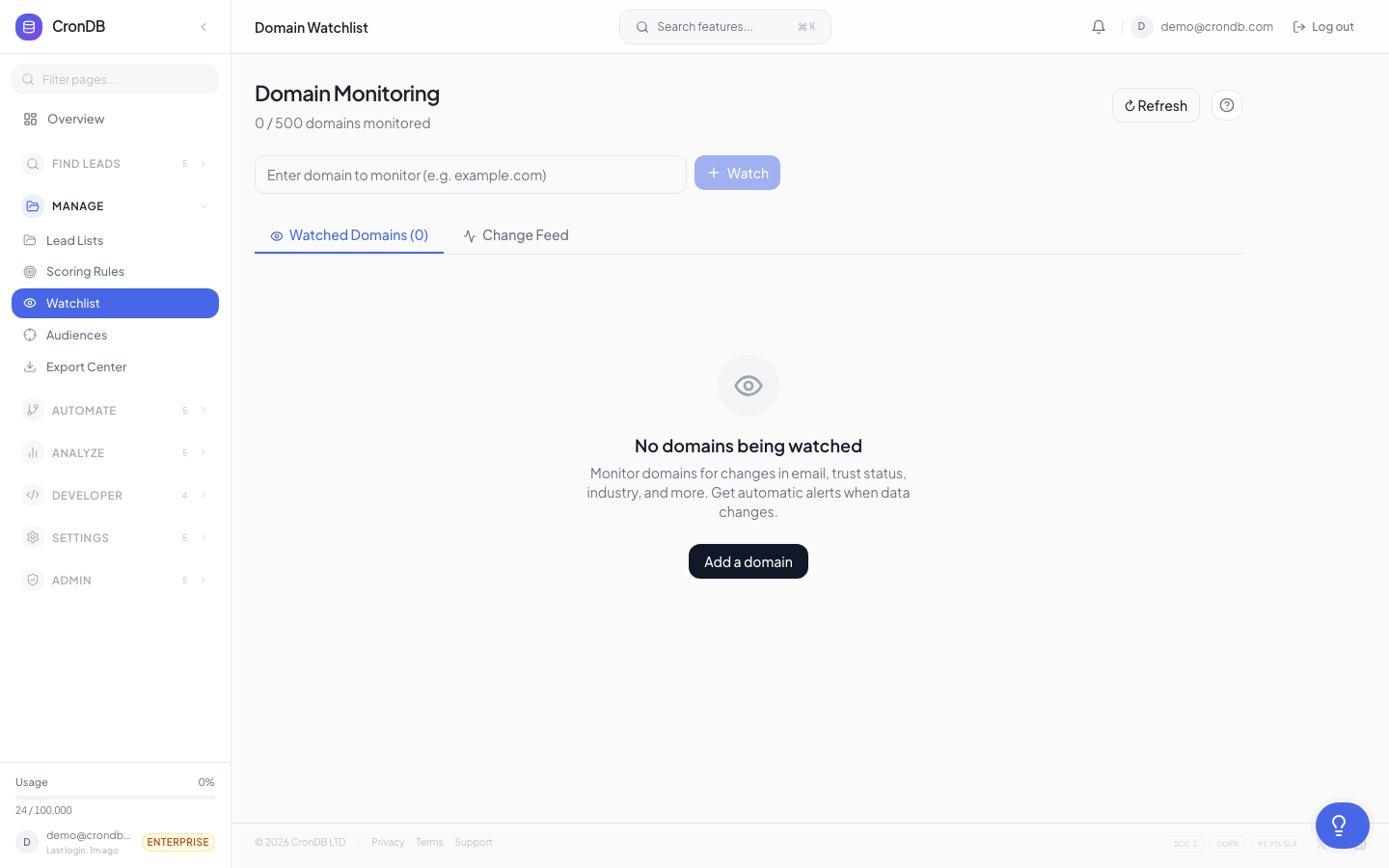
Adding Domains to Your Watchlist
From Domain Explorer
- Search for a domain in the Domain Explorer
- Click the eye icon next to the domain name
- The domain is added to your Watchlist
From Domain 360
- Open any domain's detail page
- Click Watch This Domain in the top-right corner
Bulk Add
- Go to Lead Management → Watchlist
- Click + Add Domains
- Enter domain names separated by commas or newlines, or upload a CSV
- Click Add to Watchlist
What Gets Tracked
CronDB monitors the following fields for each watched domain:
| Field | What Changes Trigger Alerts |
|---|---|
| Tech Stack | New technology added or removed |
| Contact Info | New email or phone number found |
| Website Status | Site goes live, goes down, or redirects |
| Industry | AI reclassification |
| Business Summary | Significant content changes detected |
| SSL Certificate | Certificate renewed or changed |
| DNS Records | MX, A, or CNAME changes |
| Social Links | New social profiles added |
Change Detection Frequency
CronDB checks watched domains on a rolling schedule:
| Plan | Check Frequency |
|---|---|
| Free | Weekly |
| Starter | Every 3 days |
| Pro | Daily |
| Enterprise | Every 12 hours |
Changes are detected during the next scheduled check after they occur. You will not see real-time changes, but you will be notified within the check window for your plan.
Alert Delivery
When a change is detected, you can receive alerts through:
Email Notifications
- Go to Watchlist → Settings
- Enable Email Alerts
- Choose frequency: Instant, Hourly Digest, or Daily Digest
Webhook
- Go to Watchlist → Settings
- Enable Webhook Alerts
- Enter your webhook URL
- Changes will be POSTed as JSON to your endpoint
{
  "event": "watchlist.domain_changed",
  "domain": "example.com",
  "changes": [
    {
      "field": "tech_stack",
      "action": "added",
      "value": "Stripe",
      "detected_at": "2026-03-18T14:30:00Z"
    },
    {
      "field": "contact.email",
      "action": "added",
      "value": "sales@example.com",
      "detected_at": "2026-03-18T14:30:00Z"
    }
  ]
}
In-App Notification
A bell icon badge in the dashboard header shows the count of unread watchlist alerts. Click it to see the latest changes.
Viewing Change History
- Open your Watchlist
- Click any domain to see its change timeline
- Each change shows the field, old value, new value, and detection date
The timeline lets you understand how a domain has evolved since you started watching it.
Watchlist Limits
| Plan | Max Watched Domains |
|---|---|
| Free | 10 |
| Starter | 100 |
| Pro | 1,000 |
| Enterprise | 10,000 |
Removing Domains
- Click the eye icon again to unwatch a single domain
- Select multiple domains and click Remove from Watchlist in the toolbar
- This stops monitoring but does not delete any stored change history
Add your competitors' domains to the watchlist. When they add new technologies (like a new CRM or analytics tool), you will know — giving you competitive intelligence for your sales conversations.
Next Steps
- Intent Alerts — Broader alert rules beyond specific domains
- Domain 360 — Deep-dive into any domain's full profile
- Webhooks — Push watchlist events to your systems