Account Setup
After creating your account, here's how to configure CronDB for your workflow.
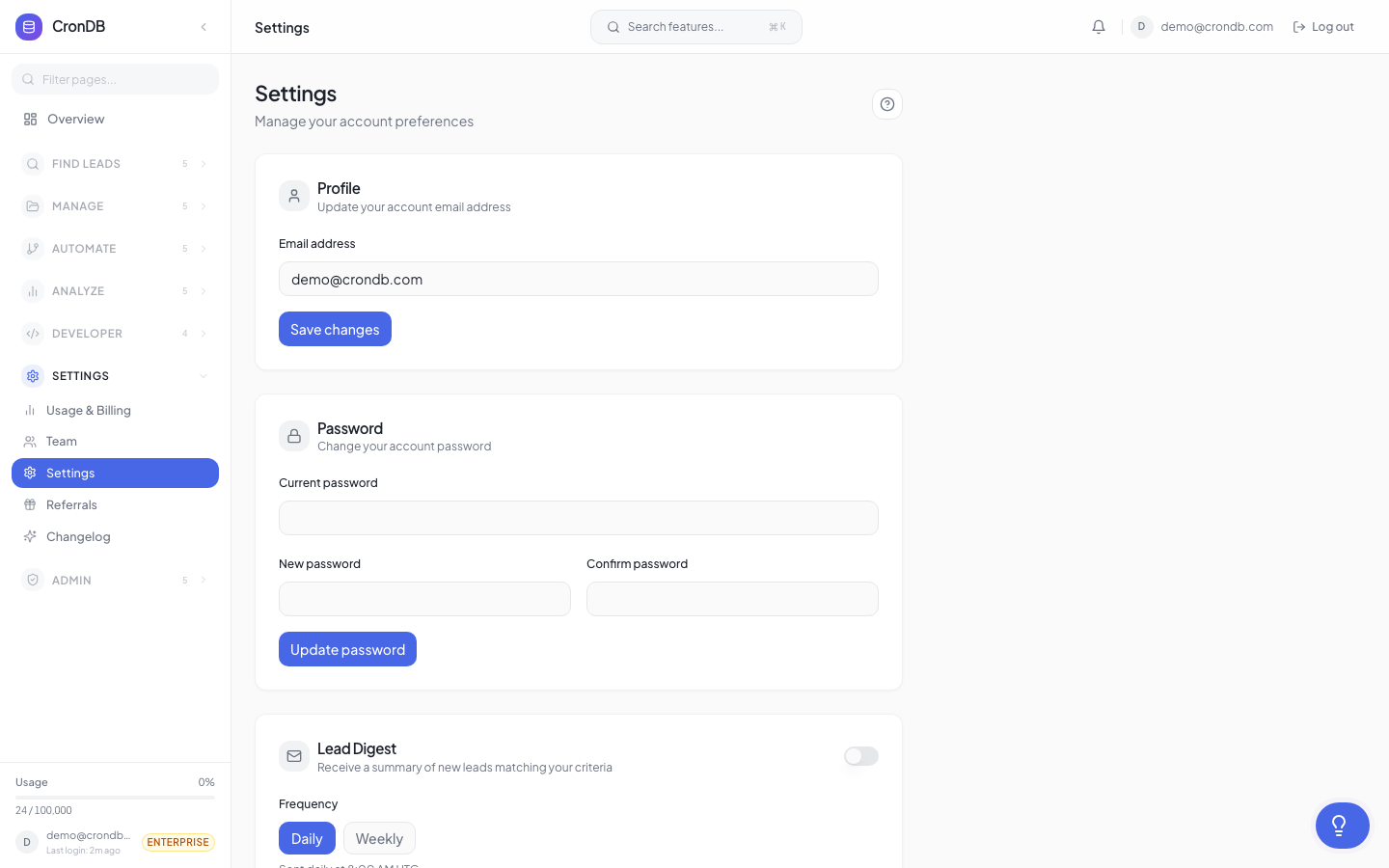
Profile Settings
Navigate to Account → Settings in the sidebar.
- Email: Your login email (used for alerts and notifications)
- Password: Change your password anytime
- Timezone: Set your timezone for accurate alert delivery and sequence scheduling
Choosing a Plan
CronDB offers five plans:
| Feature | Free Trial | Starter | Pro | Business | Enterprise |
|---|---|---|---|---|---|
| Queries | 200 lifetime | 2,000/mo | 10,000/mo | 50,000/mo | 200,000/mo |
| Daily Cap | 50/day | 400/day | 2,000/day | 10,000/day | 40,000/day |
| Sequences | — | 2 | 10 | 25 | 50 |
| Workflows | — | 2 | 10 | 25 | 50 |
| Team Members | — | — | 5 | 15 | Unlimited |
| CRM Integrations | — | — | — | ✓ | ✓ |
To upgrade, go to Account → Billing or click the Upgrade button in the sidebar. See Plans & Pricing for the full comparison.
The free trial gives you 200 lifetime queries (not monthly). Once used, you'll need to upgrade to a paid plan.
Creating API Keys
You can create multiple API keys for different applications:
- Go to Developer → API Keys
- Click + Create API Key
- Name it descriptively (e.g., "Production Backend", "Zapier Integration")
- Each key has its own usage tracking
Create separate API keys for each application or environment (dev, staging, production). This way you can revoke one without affecting others.
Setting Up Notifications
Navigate to Alerts & Notifications → Email Alerts to configure:
- Intent signal alerts — Get notified when high-intent domains appear
- Watchlist alerts — Track changes to specific domains
- Webhook delivery — Send events to your backend
Inviting Team Members
On Pro and Enterprise plans:
- Go to Account → Team
- Click Invite Member
- Enter their email and choose a role:
- Admin — Full access including billing
- Member — Dashboard access, can create lists and alerts
- Viewer — Read-only access to shared resources
Configuring Default Search Preferences
Save time by setting default search filters:
- Navigate to Domain Explorer
- Set your preferred filters (country, industry, tech stack)
- Click Save as Default in the filter bar
These defaults will apply every time you open the Domain Explorer, so you can start searching immediately without reconfiguring filters.
Connecting Your Email for Sequences
If you plan to use outreach sequences, connect your email early:
- Go to Sequences → Settings
- Click Connect Email Account
- Choose your provider (Gmail, Outlook, SMTP)
- Authorize the connection
- Verify your sending domain (SPF, DKIM, DMARC)
CronDB will check your domain's email authentication records and warn you if SPF, DKIM, or DMARC are not properly configured. This helps ensure your emails reach inboxes rather than spam folders.
Next Steps
- Your First API Call — Make requests with Python, JavaScript, or cURL
- Dashboard Tour — See every feature in action
- Billing & Plans — Detailed plan comparison